
As global regulations change, your organization must have the skills and know-how to achieve sustained competitive advantage. EHA Soft professional services team can help. We offer practical experience and knowledge to help accelerate you reduce risk and ensure product and employee safety.

National Software Campus, Mahon, Blackrock, Cork, Ireland T12 XY2N
Shopping cart

Subtotal $0.00

View cartCheckout

Irish Distillers Visitor Induction Program

Please use your dedicated username and password to login. Check the instructions below. 

Please download and read the help guide on onboarding contractor employees and assigning LMS access

Visitor Online Induction

This induction is for Visitors only.

If you are a contractor, do not use this link.

Please click INDUCTION to start your Induction Process.

Instruction

This help guide provides step-by-step instructions for accessing, navigating, and completing courses in the Learning Management System (LMS). Follow these steps to ensure a smooth learning experience.

Step 1: Accessing the LMS

There are two ways to log in to the LMS:

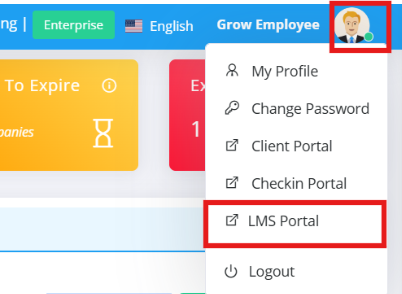
Method 1: Through the mai contractor Portal

    1. Login to your account on the mai contractor Portal.
    2. Navigate to the portal and click on your user profile.
    3. Look for the “LMS Portal” access option.
      Note: This option will only appear if your company admin has granted you “LMS Role”permissions. For onboarding, please contact your company admin.
    4. Click on “LMS Portal” to proceed to the LMS dashboard.

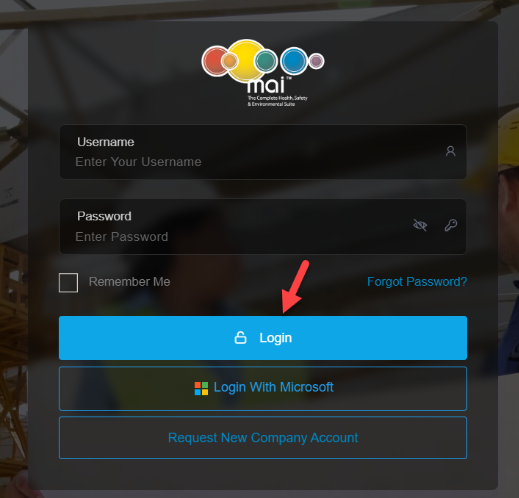
Method 2: Direct Login

    1. Click on the INDUCTION button provided on the landing page.
    2. Enter your username and password on the login page and select the Log In button.
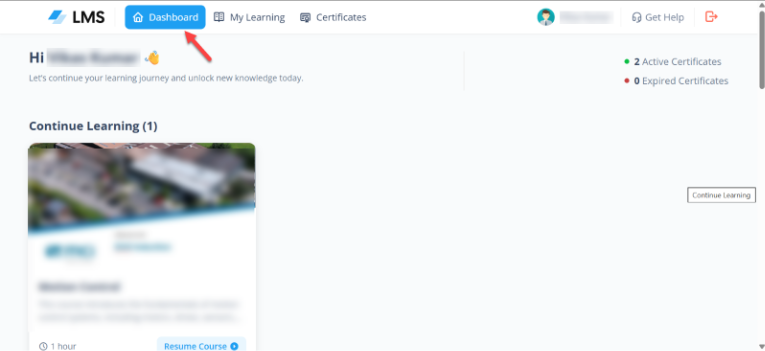
    3. Upon successful login, you will land on the LMS dashboard by default.
Step 2: Starting of a Course
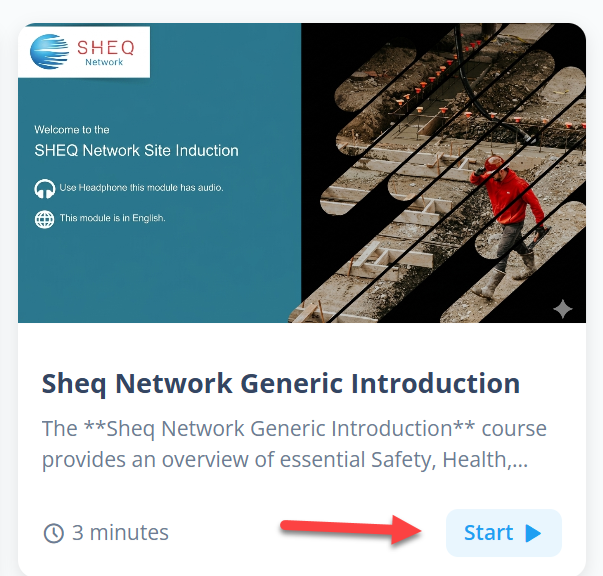
  1. Browse the available courses and select the one you wish to attend.
  2. Click on the “Start” button.
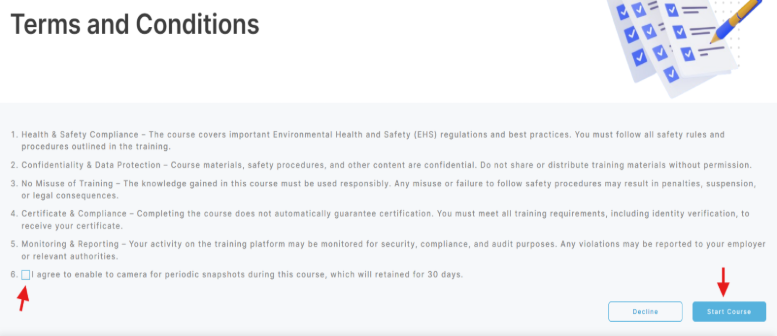
  3. Terms and Conditions screen will appear. Read them carefully. Check the “I Agree” box and click on the “Agree & Continue”
  4. A pop-up will prompt you to capture your photo. This photo will appear on your course certificate. If you already have a profile picture set up, you can simply select Option 3 and click “Confirm & Start Course”
Step 3: Attending of the course
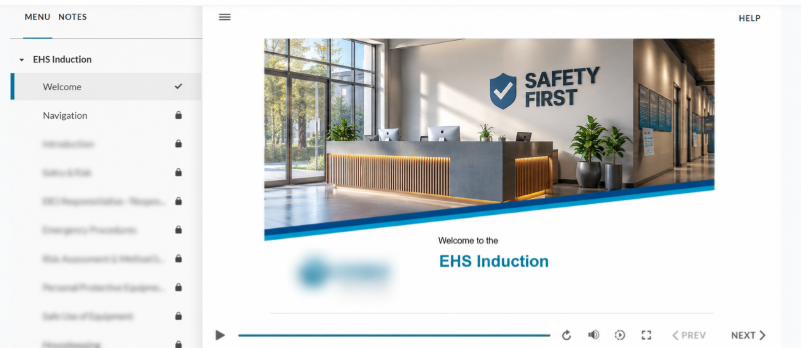
  1. After starting the course, you will see the course content with the following controls:
    • Replay
    • Volume
    • Playback speed
    • Full screen
    • Play/Pause
    • Prev/Next

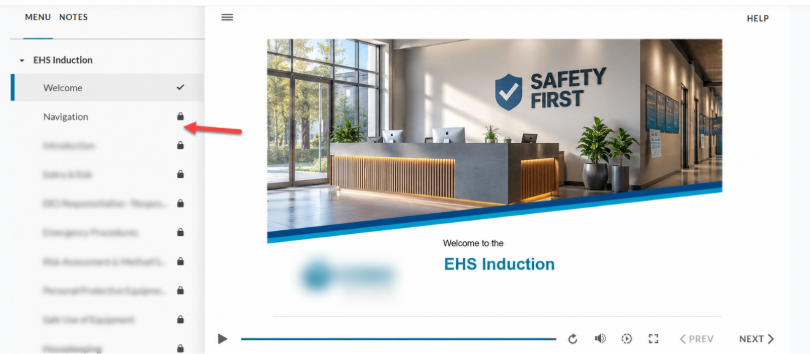
  2. You must complete the current slide before moving to the next one.
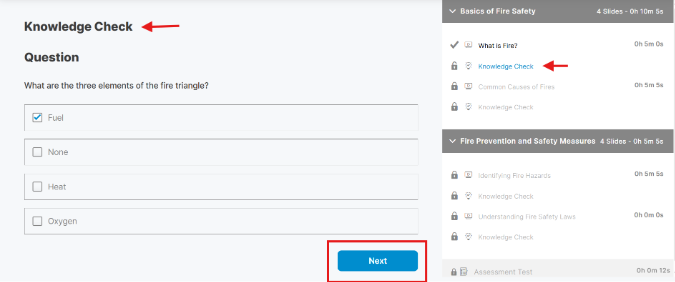
  3. Knowledge checks may appear during the course. Answer the questions and click “Next” to proceed.
    • If you answer incorrectly, a pop-up will appear informing the incorrect answer has been selected.
  4. At the end of the course, you will have to proceed with an Assessment Test (QUIZ).
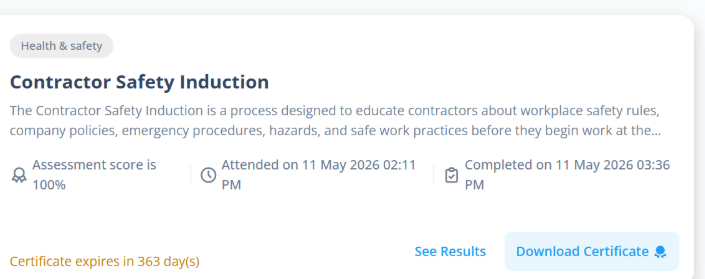
    • If you attain the required passing marks, you will see an option to download the certificate.
    • The certificate will automatically pass to the mai™ contractor Portal under the Induction tab of Employee.
    • Note- If you answer incorrectly, we don’t show any pop-up due to the security reason.
    • If you fail, you can re-attempt with the assessment test.
Step 4: Downloading Your Certificate
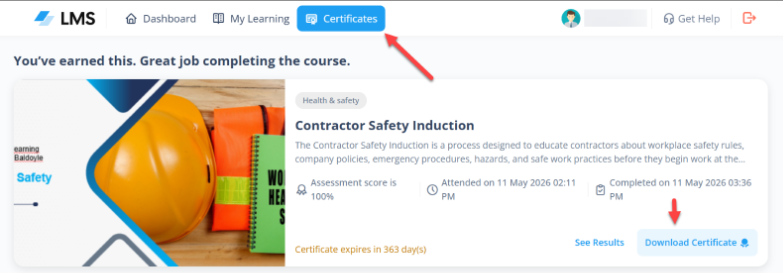
  1. You can download your certificate from the “Certificate” tab in the LMS.
  2. Click the download button to save the certificate in your device.
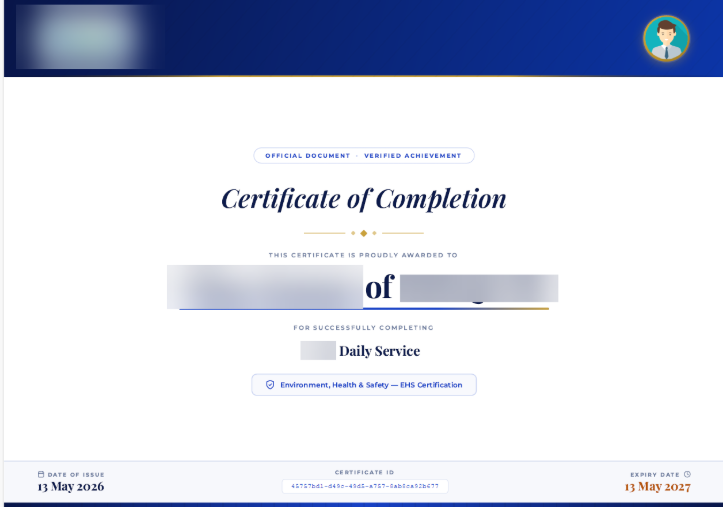
  3. The certificate will include:
    • Your name
    • Company name
    • Date of completion
    • Certificate expiry date
    • Course name
    • Unique Certificate number
** If you encounter any issues, contact your LMS administrator for assistance or contact EHA SOFT support team at +353 21 4536034 / 4536035 or email contractors@ehasoft.com.
icon
Achieve Compliance and Safety Excellence

Partner with EHA Soft for Expert Guidance and Risk Reduction

Get Started Now