
As global regulations change, your organization must have the skills and know-how to achieve sustained competitive advantage. EHA Soft professional services team can help. We offer practical experience and knowledge to help accelerate you reduce risk and ensure product and employee safety.

National Software Campus, Mahon, Blackrock, Cork, Ireland T12 XY2N
Shopping cart

Subtotal $0.00

View cartCheckout

Irish Distillers Visitor Induction Program
Online Induction

Please click INDUCTION to start your Induction Process. Please ensure your induction certificate is uploaded onto the contractor portal.

Please use your dedicated username and password to login only and DO NOT use the “Register Now” button.

Instruction

This help guide provides step-by-step instructions for accessing, navigating, and completing courses in the Learning Management System (LMS). Follow these steps to ensure a smooth learning experience.

Step 1: Accessing the LMS

There are two ways to log in to the LMS:

Method 1: Through the mai contractor Portal

  1. Login to your account on the mai contractor Portal.
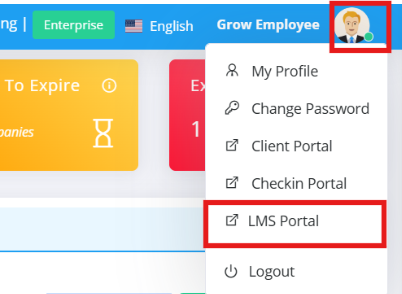
  2. Navigate to the portal and click on your user profile.
  3. Look for the “LMS Portal” access option.

Note: This option will only appear if your company admin has granted you “LMS

            Access” permissions.

4. Click on “LMS Portal” to proceed to the LMS dashboard.

 Method 2: Direct Login

  1. Click on the INDUCTION button provided on the landing page.
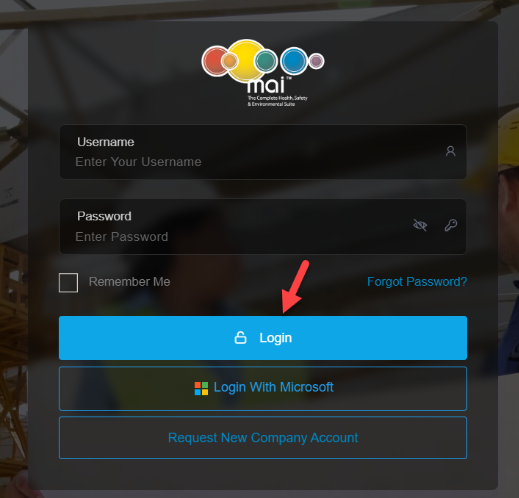
  2. Enter your username and password on the login page and select the Log In button.
  3. Use the “Forgot Password” button to reset the password.

Note: Please use your dedicated username and password to login only and DO NOT use the “Register Now” button.

4. Alternatively, click on the “Login with CP3″ to be redirected directly to the LMS dashboard.

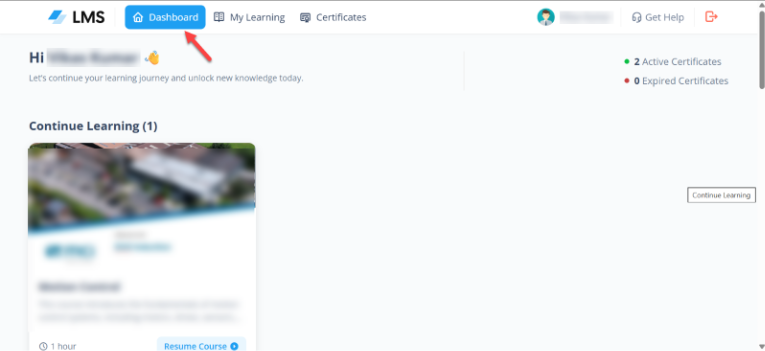
               Upon successful login, you will land on the LMS dashboard by default.

Step 2: Starting of a Course

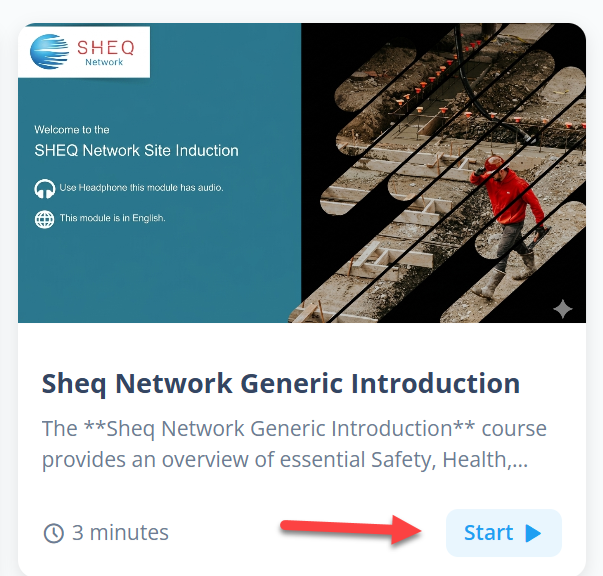
  1. Browse the available courses and select the one you wish to attend.
  2. Click on the “Start Learning” button.

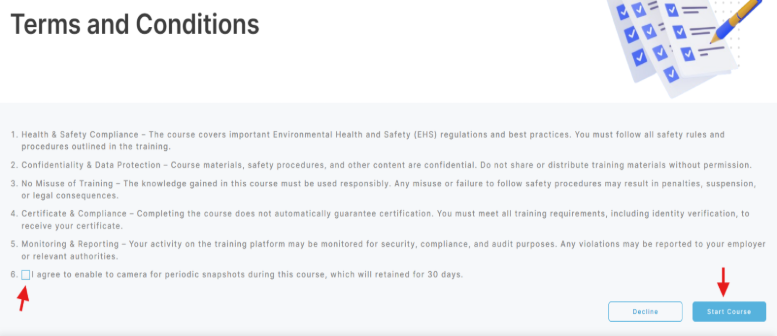
3. A Terms and Conditions screen will appear. Read them carefully.

4. Check the “I Agree” box and click on the “Start Course”.

5. A pop-up will prompt you to capture your photo. This photo will appear on your course certificate.

6. Once the photo is captured, the course will begin.

Step 3: Attending of the course

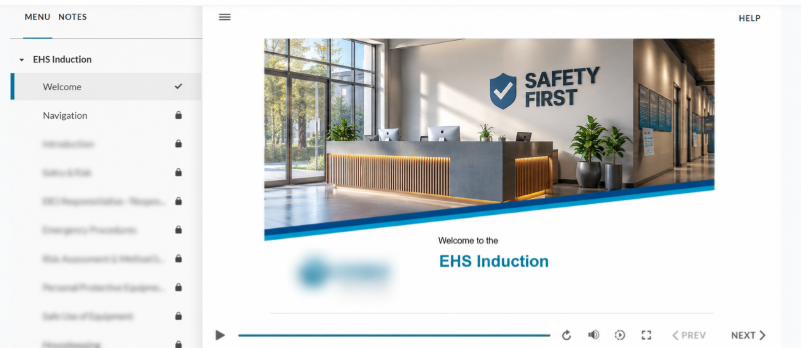
  1. After starting the course, you will see the course content with the following controls:
    • Replay
    • Volume
    • Playback speed
    • Full screen
    • Play/Pause
    • Prev/Next
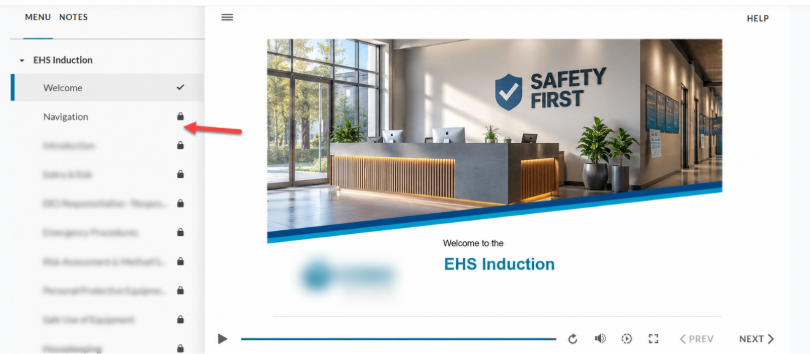
  2.  You must complete the current slide before moving to the next one.
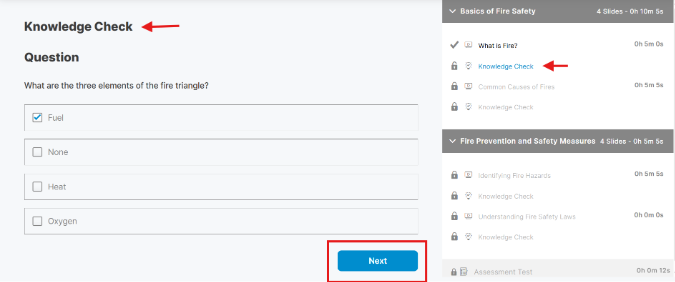
  3. Knowledge checks may appear during the course. Answer the questions and click “Next” to proceed.

    • If you answer incorrectly then below pop-up will appear.

4. At the end of the course, you will have to proceed with an Assessment Test (QUIZ).

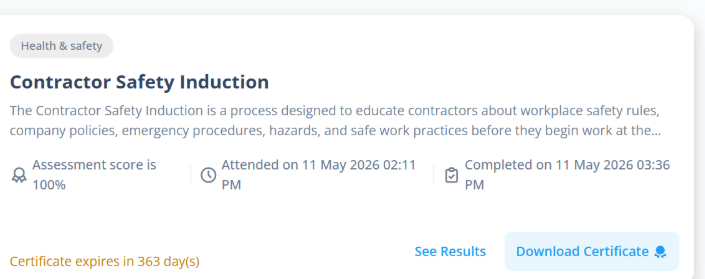
    • If you attain the required passing marks, you will see an option to download the certificate.
    • Note– If you answer incorrectly, we don’t show any pop-up due to the security reason.
    • If you fail, you can re-attempt with the assessment test.

Step 4: Downloading Your Certificate

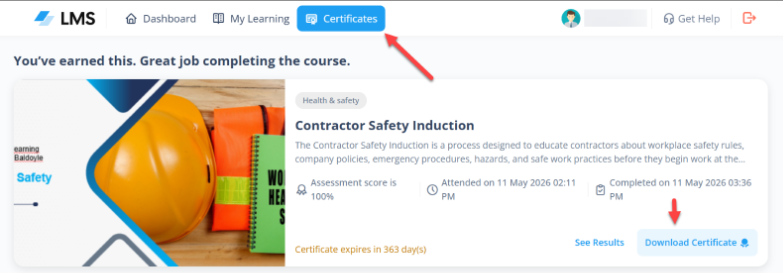
  1. You can download your certificate from the “Certificate” tab in the LMS.

2. The certificate will automatically pass to the mai contractor Portal under the Induction tab of Employee.

3. Click the download button to save the certificate in your device.

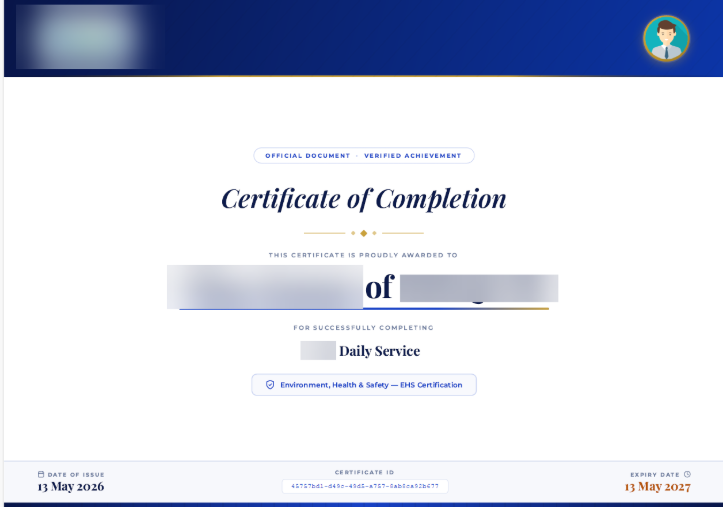
4. The certificate will include:

    • Your name
    • Company name
    • Date of completion
    • Certificate expiry date
    • Course name
    • Unique Certificate number

** If you encounter any issues, contact your LMS administrator for assistance or contact our support team (contact@sheqportal.ie or contractors@ehasoft.com).

icon
Achieve Compliance and Safety Excellence

Partner with EHA Soft for Expert Guidance and Risk Reduction

Get Started Now